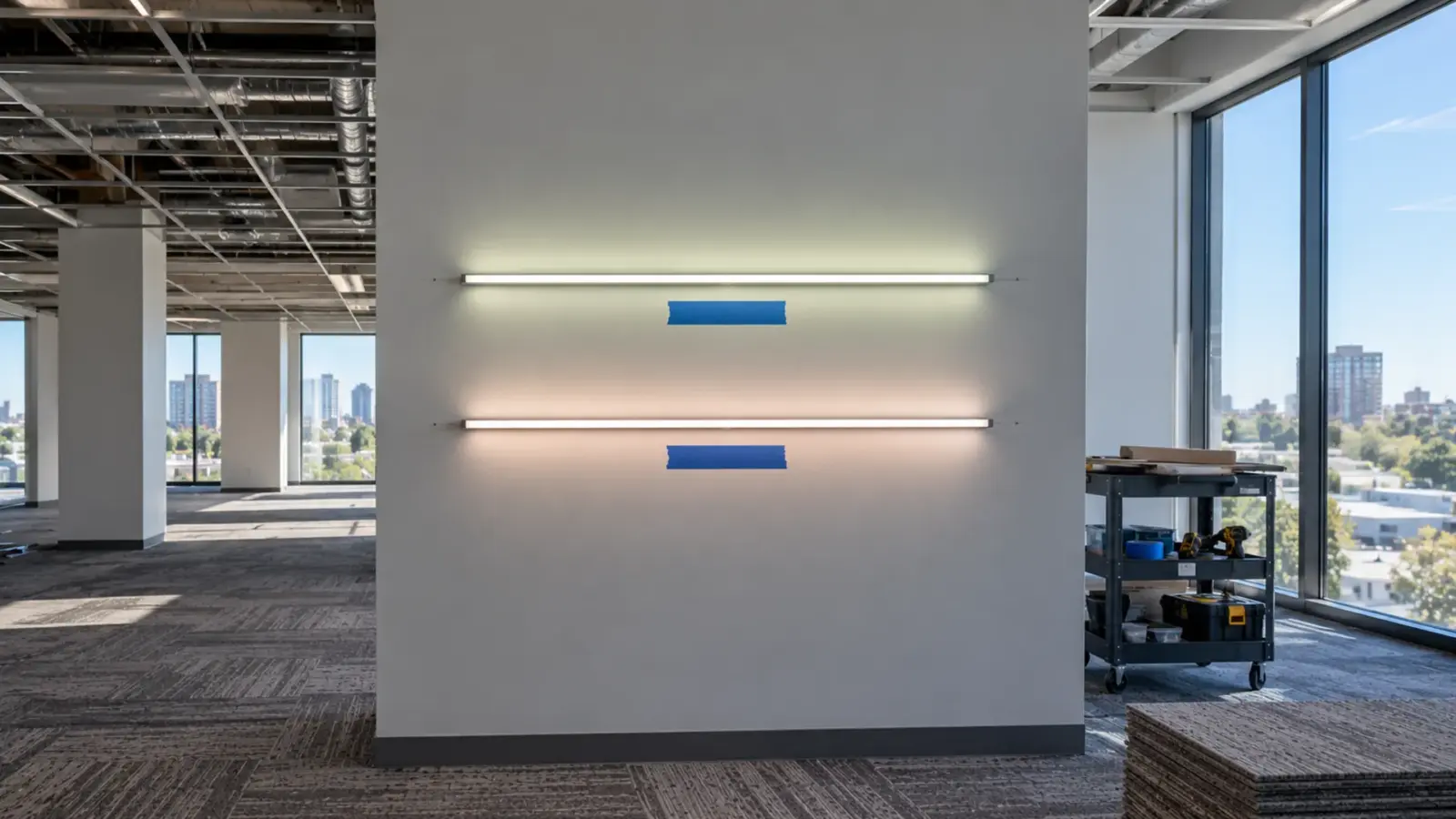


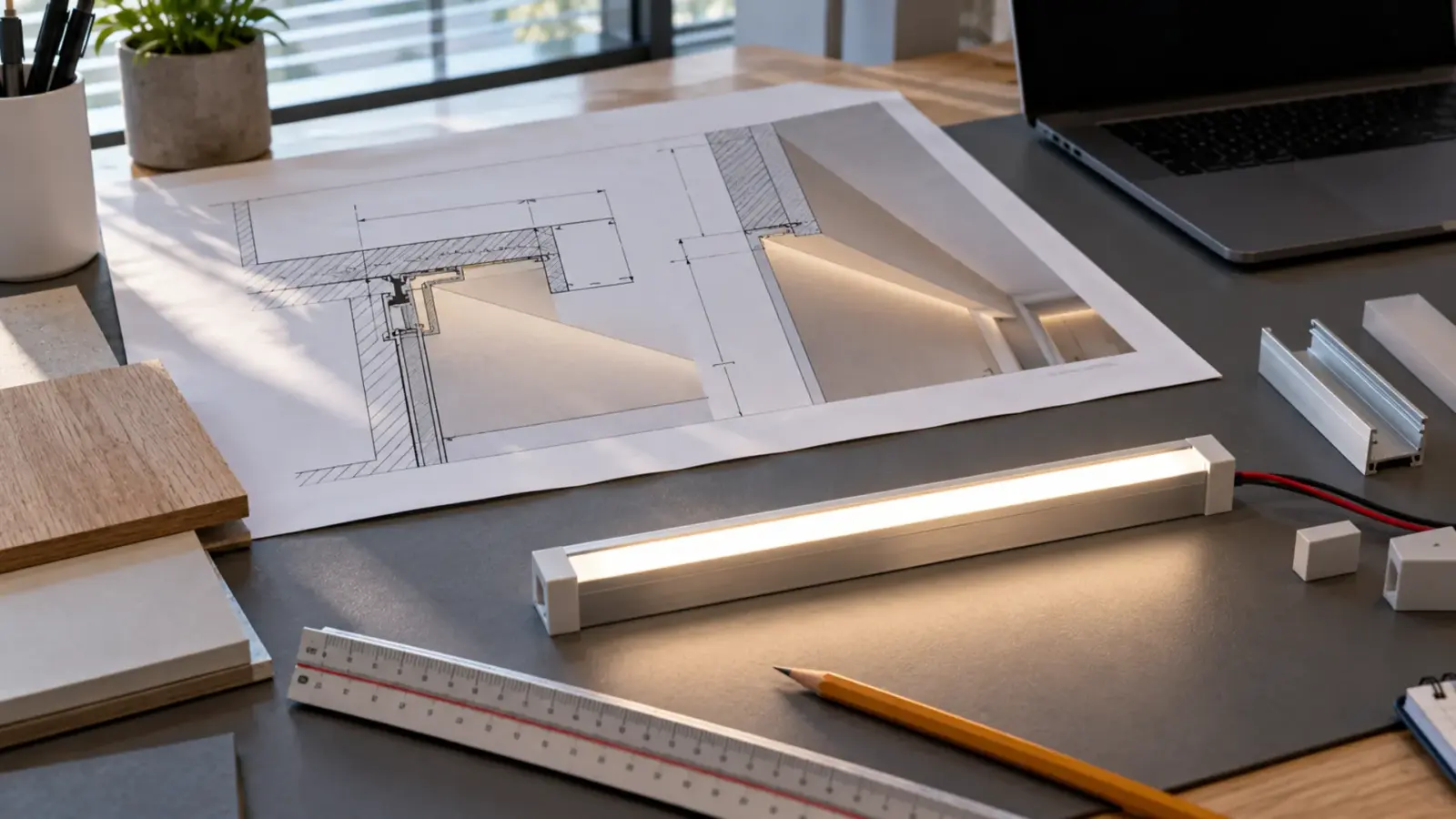
Use the IES file that was measured on the same assembly you are installing: strip, channel and cover together. A file for bare tape overstates a cove under an opal cover, and a file borrowed from another product describes the light that product emits, not yours. Ask for the file by model, length and cover.
The mistake shows up in the render. A designer loads a bare-strip file, puts it under an opal cover in a cove, and the report shows 30 percent more light on the ceiling than the job will give. The owner approves the render, and the mockup disappoints. The steps below keep the file and the assembly matched.
What an IES File Holds
An IES file records how a tested luminaire spreads light in each direction. The format is ANSI/IES LM-63-19, the approved method for transferring photometric data, and a file starts with the line IES:LM-63-2019. It carries candela values by angle, the dimensions of the luminous opening, and information about the manufacturer and the test. It does not carry color or spectral data, so a file cannot tell you the CCT or the Color Rendering Index, 0–100: how truthfully the light shows colors next to a reference source. Ra≥90 is the usual bar for interiors.. Those come from the datasheet.
LED products fit the format awkwardly, because it predates them. Some makers enter one lamp with the product’s total lumens, and others use absolute photometry, where the lumens-per-lamp field is set to -1 and the file reports the measured output directly. For strip, check which one the file uses, because it decides how the software scales the light.
AGi32, DIALux, Relux and Revit all read these files. Revit, according to Autodesk’s documentation, builds a photometric web from the file’s intensity data. The file is an input to a calculation, and what comes out depends on the room you model.
Pick the Test Condition
The first question is what was measured. A strip, a strip in a channel and a strip behind a cover are three different light sources.
- 1Bare stripFile ALEDs and board, no housing
- 2In a channelFile BOpen face, housing changes the beam
- 3With coverFile CCover changes lumens and distribution
| Test condition | What the file represents | Use it when |
|---|---|---|
| Bare strip | The LEDs and the board, no housing | You model a directly visible strip or an exposed run |
| Strip in a channel, no cover | The LEDs inside the housing, open face | The cover is not yet chosen, as a first pass |
| Strip, channel and cover | The finished assembly | Always, when the final assembly is known |
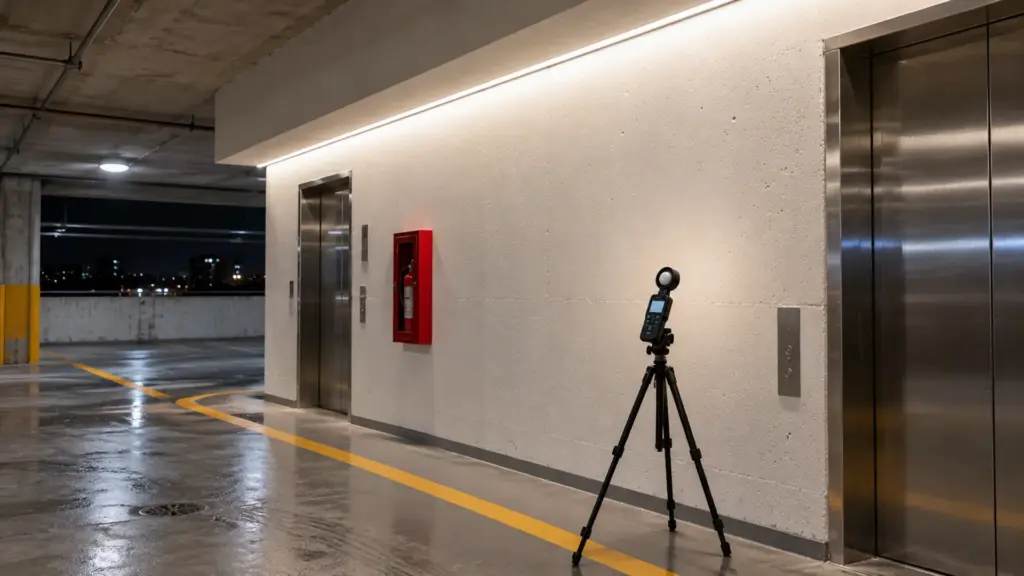
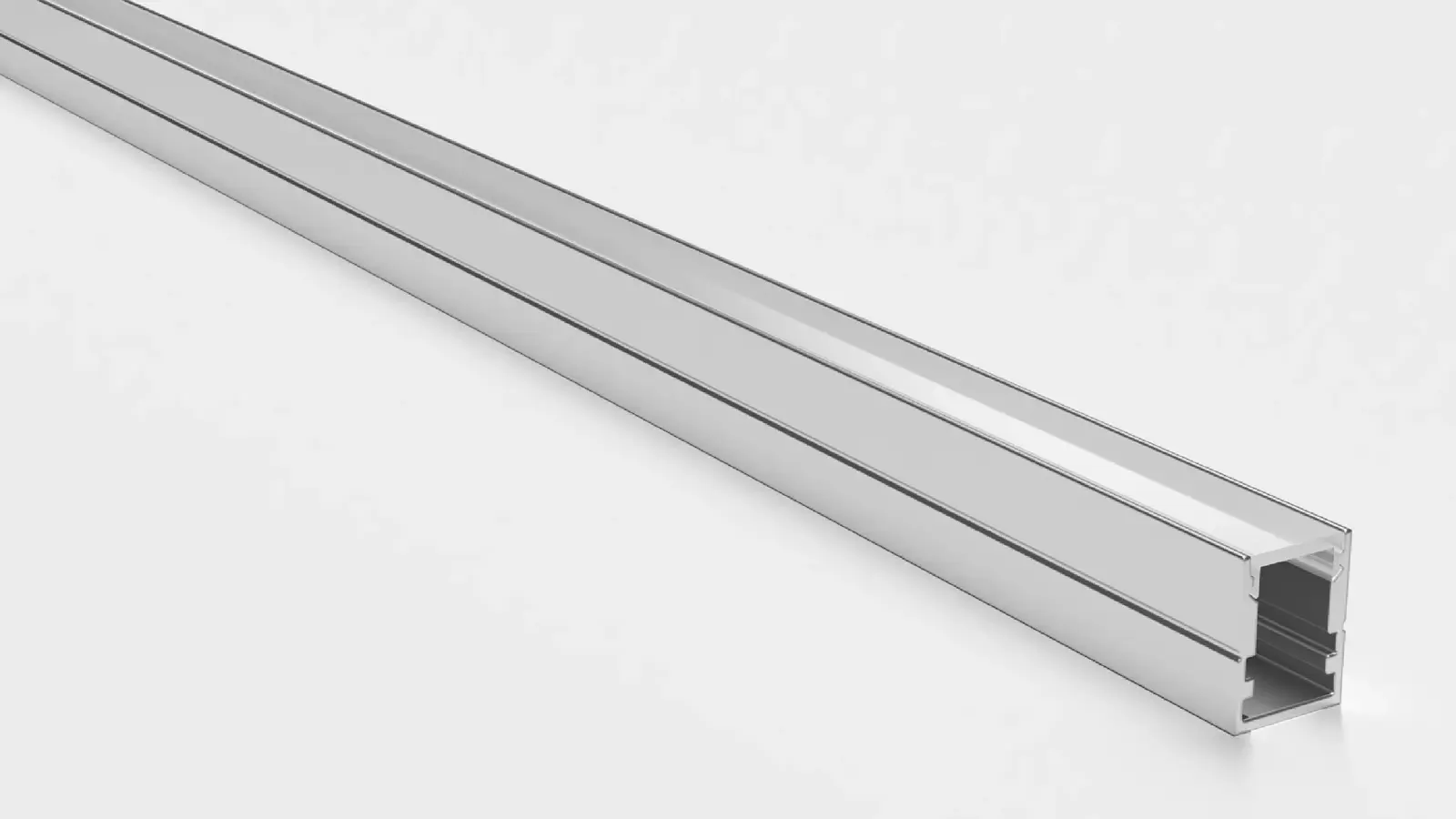
A cover changes the light twice. It takes part of the output, and it changes the distribution. Our channel page lists PC clear at roughly 90 to 95 percent transmission and PC opal at roughly 70 to 80 percent. Those figures show how much a cover costs, not what the file should contain. For a calculation you need the file measured with the cover on, or you need to apply a loss factor you can defend.
If you use a bare-strip file and adjust the lumens by hand, say so in the submittal. A hand-adjusted file is an estimate, and the mockup is what proves it.
Length and Units
Strip is a continuous line, and a file is a measurement of one sample. The questions to ask the supplier are simple, and the sources do not answer them for strip:
- What length of strip was tested?
- Is the file per foot, per meter, or for the whole sample?
- Do the luminous dimensions in the file match that sample?
- How should a longer run be modeled: repeated instances end to end, or a scaled line?
Do not scale a file by length unless the maker says that is valid. A short sample has end effects that a long run does not. A common method in design software is to place several instances of the file end to end, which keeps the distribution and adds the flux. Confirm that method with the supplier before you rely on it.
Inputs and Outputs: A Worked Run
The calculation needs inputs that are not in the file: the geometry of the room, the mounting position, the reflectances of the surfaces, and a light loss factor. The outputs are illuminance and uniformity on the surfaces you choose.
- 1InputsIES filePlus geometry, reflectances, loss factor
- 2CalculationSoftwareAGi32, DIALux, Relux, Revit
- 3ResultsLight on surfacesIlluminance and uniformity
- 4MockupCheckMeasure the real assembly
Here is the arithmetic for the total flux of a run, which you can check before the software runs. The example uses a round-number strip of 500 lm/ft, which is not a model, along a 120 ft cove.
| Cover | Transmission | Light per foot | Light in the 120 ft run |
|---|---|---|---|
| None | 100 percent | 500 lm/ft | 60,000 lm |
| PC clear | roughly 90–95% | 450–475 lm/ft | 54,000–57,000 lm |
| PC opal | roughly 70–80% | 350–400 lm/ft | 42,000–48,000 lm |
The run with an opal cover emits 12,000 to 18,000 lumens less than the bare strip. If the render used the bare file, the ceiling shows that much extra light on paper. The error is in the file, and the mockup finds it.
Then give the software the reflectances. A white painted cove ceiling and a dark one give very different results from the same file, so state the reflectances in the report and measure the real surfaces on the mockup wall.
Lumens and Candela: What the Software Uses
A photometric file holds candela, the intensity in each direction, and the software integrates it to a total flux. The total is a separate number from the datasheet’s lumens per foot, and the two should agree within the tolerance you accept. Check it before you trust the render: multiply the datasheet’s lumens per foot by the length of the sample in the file and compare it with the flux the viewer reports for the file. A gap of a few percent is normal. A gap of 20 percent means the file was measured on a different condition from the datasheet, usually a different cover or a different drive current.
This is also why the file’s drive current matters. A strip dimmed to 50 percent is not a file at 50 percent candela with the same shape, and the maker’s file is for the condition that was tested, normally full output. Dim the calculation by the software’s dimming factor and say what level the report assumes.
Cove and Slot Geometry
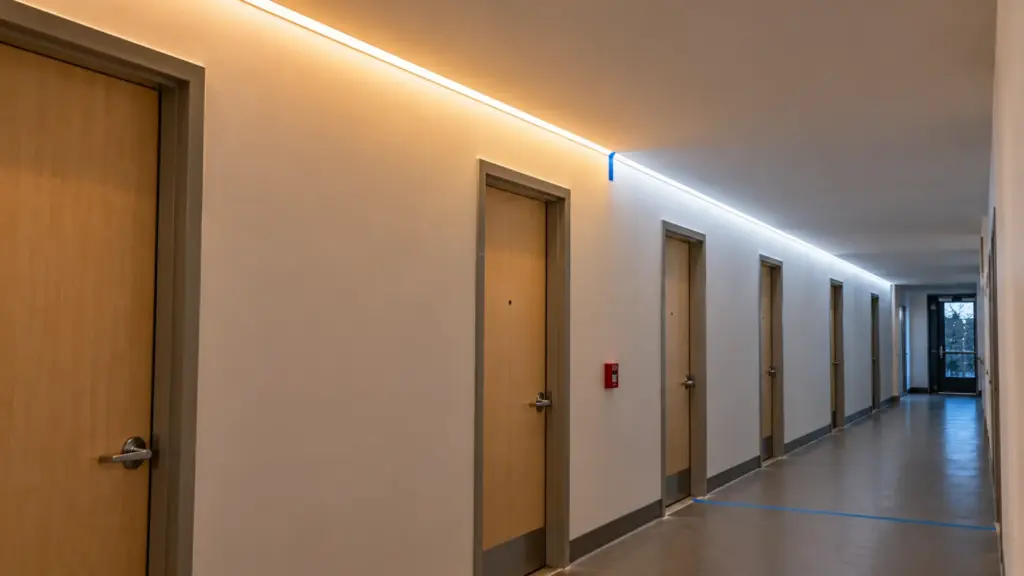
The same file gives different results in different rooms, and the geometry is where most of the difference is. In a cove the strip aims at the ceiling, so the ceiling reflectance and the setback from the wall decide the look. In a slot it aims at the floor or a wall, so the mounting height and the target distance decide it. Model the luminaire object in the position and orientation it will have on the job, with the aim stated, and check the units of the file against the units of the model before the first run. A file in feet placed in a model in meters scales the light source tenfold and shows a nonsense result.
Where the line sits near a surface, remember that the file describes the source in free space. The cove lip, the channel walls, and the finish of the ceiling are modeled by the software from the surfaces you draw, so draw them. If the cove is hidden, calculate on the ceiling and the wall, because those are what the eye sees.
Check the File
Open the file in a viewer before you load it, and check the following.
- The header reads IES:LM-63-2019 or an earlier version, and the software supports it.
- The manufacturer and the model in the file match the product you are specifying.
- The lumens and the units match the datasheet within the tolerance you accept, and the units are feet or meters as the dimensions state.
- The test condition is the assembly you are modeling.
- The dimensions are the sample’s, not a placeholder.
- The test report reference is present, so you can ask for the report.
Do not use a file from a different product, even a similar one. Our downloads page states the same rule from the supplier side: if a model has no IES file, we tell you so instead of sending a file from a different product. Our guide to reading a strip spec sheet helps check the datasheet against the file, and the submittal guide explains where LM-79, LM-80 and TM-21 sit in the package.
Control States in the Model
A file describes one condition of the source. A tunable white strip at 3000K and at 5000K are two sources with different outputs, and a single file can only represent one of them. Ask for files at the CCTs you plan to use, or state the assumption in the calculation. For RGBW strip, the file usually represents the white channel only, and color scenes are not in it. If the design needs a color scene, treat the calculation as indicative and confirm on the mockup.
Dimming has the same limit. Model the levels you will use, such as full output for cleaning and dimmed for occupancy, and state them. The control zones in the model should match the zones on the drawing, so that a report line can be traced to a physical run.
What Goes in the Submittal
A calculation is a document, and it needs the facts that let a reviewer repeat it. Put these on the page with the result:
- The file name, the model it represents, the test condition and the sample length.
- The date and the version of the file, and the software and its version.
- The room geometry, the surface reflectances, the light loss factor and the dimming level.
- The cover model, because a different cover changes the file.
- A photo of the mockup, with the measured values, next to the calculated ones.
Our submittal guide shows where the photometric pages sit in the full package.
BIM Objects
A BIM object carries geometry, and for lighting it can also carry a photometric file. The two have to match. A family with the right shape and the wrong file looks correct on the sheet and wrong in the render, and a family with the right file and the wrong shape clashes in coordination.
Ask three things before you load an object: which model it represents, which assembly the attached photometry was measured on, and whether the geometry includes the channel and cover. If no family exists for the exact model, a generic linear family with the correct file attached is a reasonable placeholder for design, and the detail drawing carries the real dimensions. Our channel page notes that CAD section drawings ship with your quote, and that is the file to ask for when the ceiling section is being drawn.
We do not promise a Revit family for every model. Ask for the exact files you need. If a file does not exist for your model, we tell you so.
FAQ
Can I use an IES file from a different LED strip that looks similar?
No. An IES file describes the light distribution of the product that was tested, and a different strip, channel or cover changes it. A borrowed file moves the error from the render into the room.
Does an IES file include color temperature or CRI?
No. An IES file carries no color or spectral data. CCT and CRI come from the datasheet, and the lighting design software takes color from the settings you choose.
Do I need an IES file for a hidden cove?
Yes, if the design calls for a calculated light level on the ceiling or the wall. The strip is hidden, but the surfaces it lights are what the eye sees, and a file measured on the right assembly gives the software what it needs. The mockup is still the check that proves the render.
Is the IES file for LED strip per foot or per meter?
It depends on how the supplier prepared the file, and the standard does not fix it for strip. Ask what sample length was tested, what the units are and how the supplier recommends modeling a longer run.
Before You Request Files
Send the model number, the CCT and CRI, the channel and cover model, the run length and the mounting position. Say whether the render needs a file for the finished assembly or for the strip alone, and name the software and its version. An engineer replies by model with the IES file when one exists.
Unitop Lighting supplies LED strip, channels and covers for commercial and architectural projects across the US. Use the downloads page for datasheets and IES requests, and request a quote with your drawings when the job is ready for pricing and a layout check.