

A replaced driver costs a site visit. A replaced driver that was never faulty costs two. LED driver troubleshooting comes down to three readings: input voltage, output voltage with no load, and output voltage with the strip connected. Together they separate a dead driver from an overloaded one, a supply problem, or a fault in the strip.
Take the readings before ordering anything, write them down, and keep them with the job file. They also answer the first questions any supplier will ask about a warranty claim. The same readings start our LED strip troubleshooting order for the whole run.
Driver or Strip? Three Readings Decide
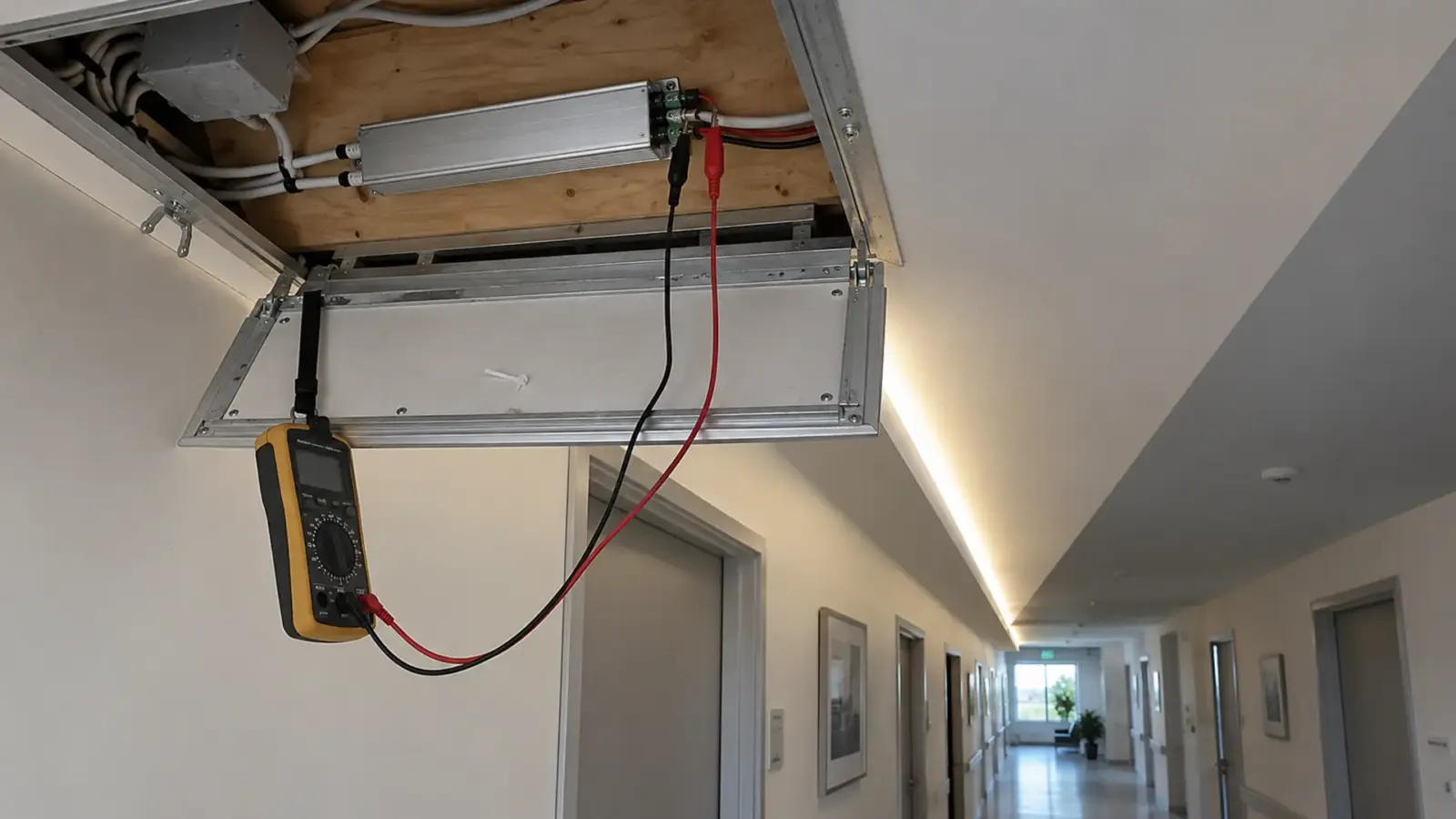
Use a meter on AC volts for the input and DC volts for the output. Readings on a 24V constant-voltage strip driver:
| Reading | Result | What it means |
|---|---|---|
| 1. Input, AC volts at the input terminals | No voltage | Supply side: breaker, switch, dimmer, control, wiring |
| 1. Input | Voltage present | Go to reading 2 |
| 2. Output, strip disconnected | No voltage | Driver failed or latched off |
| 2. Output | Close to rated voltage | Driver can regulate; go to reading 3 |
| 3. Output, strip connected | Holds close to reading 2 | Driver is fine; look at the feed and the strip |
| 3. Output | Drops sharply, or cycles | Overload, short in the load, or a weak driver |
Rated voltage is on the driver label and datasheet, and so is the output tolerance. According to Regency Supply, a 12 V driver reading between 11.5 V and 12.5 V is normal; a 24V driver is judged the same way against its own datasheet.
Readings in parallel across the output terminals are safe for DC volts. Current readings are a different matter: use a clamp meter that reads DC on one output conductor rather than putting a meter in series, and keep the input side to someone qualified for live line-voltage work.
No Output
When reading 1 is good and reading 2 is zero, the driver is either dead or protecting itself. The difference is worth one more test.
Switch the input off, wait a minute, and switch it on again with the strip still disconnected. Many drivers latch off after a short or an overload and recover after a power cycle with no load. If the output returns, the driver was protecting itself from something in the load: a short in a joint, a pinched feed wire, or reversed polarity at a connector. Find that fault before reconnecting, or the driver will latch off again.
If the output does not return with no load and a healthy input, the driver has failed. According to Power Supplies Australia, zero output with good input points to the driver, while no input points to the supply side. Before you order a replacement, confirm three things on the label of the failed unit: the output voltage, the wattage, and the dimming method. A replacement that matches only the voltage is how a working system becomes a flickering one.
According to the Acuity Brands troubleshooting guide, swapping in a known-good driver temporarily is the quickest way to separate driver from load. A spare of each driver type on the truck turns a second visit into a ten-minute test.
Output That Drops Under Load
A driver that reads correctly with no load and drops sharply when the strip is connected is being asked for more than it can deliver.
Measure the current with a clamp meter and multiply by the output voltage. Compare that load with the driver rating:
- Over the rating: the run is longer than drawn, extra strip was added later, or two runs were joined onto one driver.
- Between 80% and 100% of the rating: the driver may hold on a cool day and struggle on a hot one. Our sizing practice keeps the load at or below 80%, which is 48 W on a 60 W driver such as UT-D60-24-C2. The power supply sizing guide works this out from watts per foot.
- Well under the rating, voltage still drops: suspect a partial short in the load or a driver that is failing. Disconnect half the run and measure again.
The voltage drop along the strip is a separate issue. It shows as a dim far end with a healthy driver output, and it is fixed with feeds, not with a bigger driver.
Cycling On and Off
A strip that switches off, waits, and comes back is almost always a driver protecting itself, from either overload or heat.
- Overload cycling is quick and regular: the driver shuts down as soon as the load is applied, tries again a moment later, and repeats. It looks like a slow strobe. Reduce the load or split the run.
- Thermal cycling is slow: the strip runs normally for minutes or hours, goes off, and returns after the driver cools. According to the US LED troubleshooting guide, overheating drivers shut off or dim the light. A user on the SmartThings community forum described exactly this pattern with a supply loaded at about 92 W of its 96 W rating.
Class 2 drivers behave the same way at their limit. A Class 2 driver is built to limit its output, so an overloaded one protects itself rather than delivering more power. That is the design working, not a defect; the load has to come down.
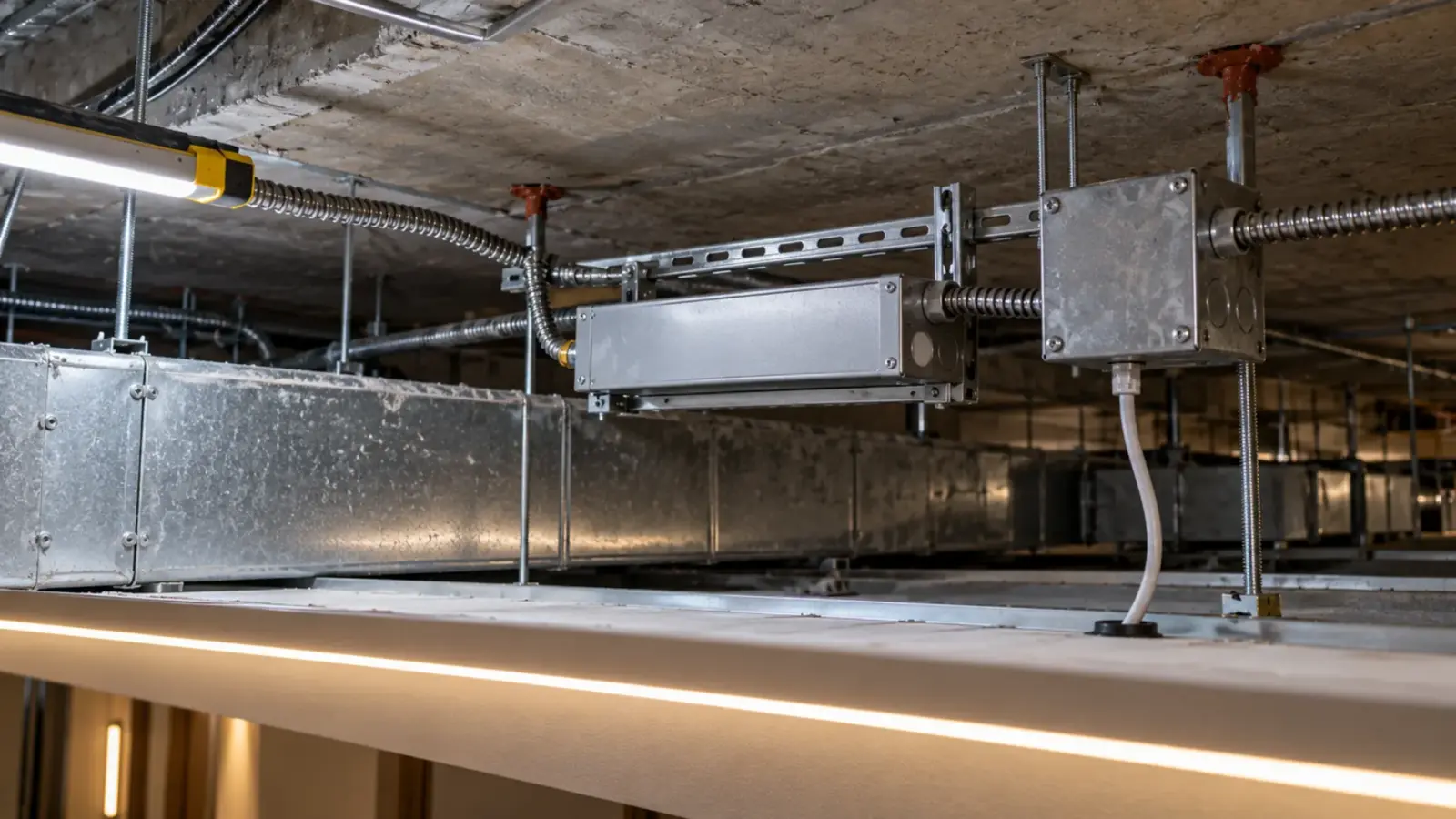
Check where the driver lives. A driver above a sealed hard ceiling, in a millwork cabinet with no air, or in a closet next to a water heater runs much hotter than the room. Our driver placement guide covers locations that stay reachable and cool.
Hum and Buzz
Some sound is normal close to a driver under load, especially a larger linear driver. A hum you can hear across the room is not.
According to Hitlights, buzzing comes from dimmer mismatch, loose connections and heat. Separate them in this order:
- Turn the dimmer to full. Hum that disappears at full and returns as you dim is a phase dimmer and driver pairing problem. Our UT-D60-24-TRC is built for forward and reverse phase dimmers; a driver that is not listed for phase dimming should not be on one at all.
- Check every screw terminal. A loose input or output terminal can buzz and will get warm. Power off, tighten, and look for discolored insulation.
- Feel the case after an hour. A driver that hums and runs hot is working at or over its limit; measure the load.
- Listen for the mounting. A driver bolted to a thin metal panel or a hollow millwork side can turn a faint normal hum into a loud one. Moving it to a solid surface sometimes fixes the complaint without changing anything electrical.
In quiet rooms such as hotel guest rooms, patient rooms and libraries, put the driver in a closet or a ceiling space away from the occupied area at the design stage. A hum that nobody notices in a corridor becomes a complaint above a bed, even when the driver is working exactly as designed.
Flicker That Follows the Driver
Flicker has many causes; the ones that belong to the driver can be told apart by timing. Montreal Lighting’s checklist splits flicker into two kinds, and it holds for strip drivers too:
- From switch-on: a mismatch between the control method and the driver. A 0-10V driver needs a 0-10V control, a TRIAC driver a phase dimmer. Our dimming guide covers the pairings.
- After several minutes: heat. The driver is cutting back or cycling as it warms.
A quick test: move the strip to a known-good driver of the same type. If the flicker moves with the old driver, the driver is the cause. If it stays with the strip, look at joints, the feed and the controller between driver and strip.
Flicker only near the bottom of the dimming range is a low-end setting problem between dimmer and driver, covered in the guide to LED tape that glows or flickers when dimmed.
When a Controller Sits Between Driver and Strip
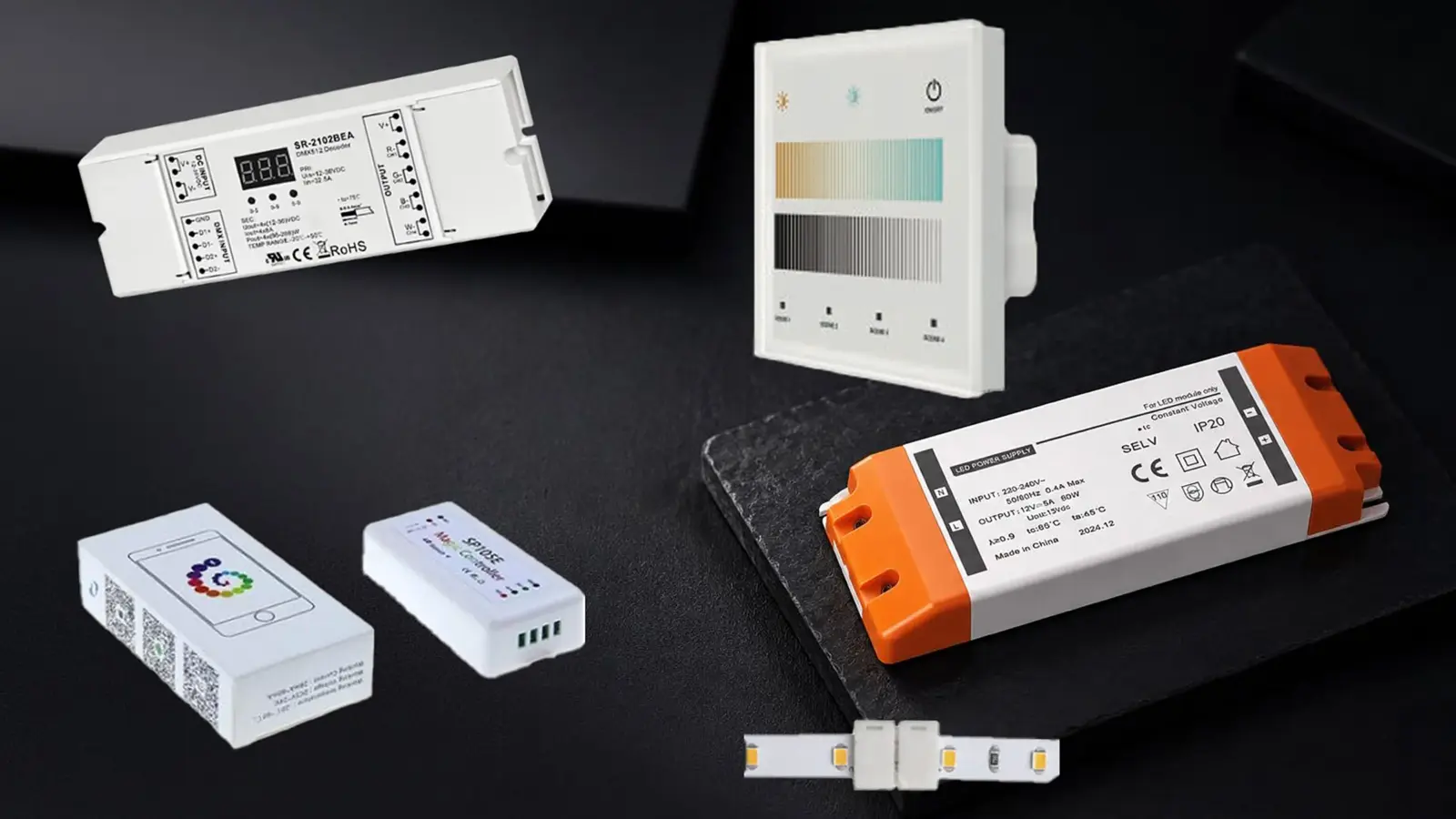
Many jobs put a decoder, an RF receiver or a DMX decoder between the driver and the strip. Then a “dead driver” can be a controller that is not passing power through.
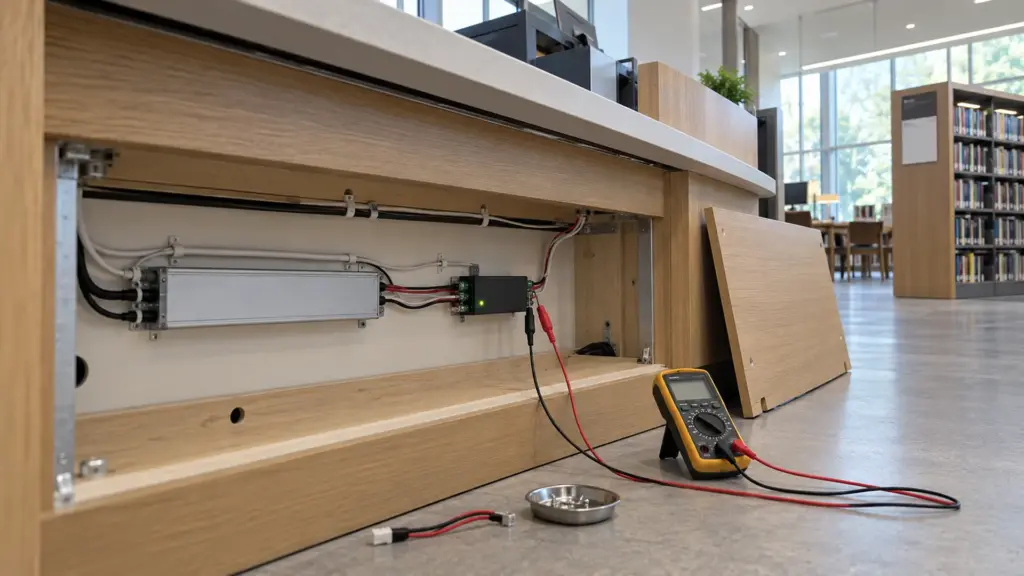
Add one reading: DC volts on the controller’s input and on its output. Voltage in and none out means the controller, its address, its signal or its configuration; the driver is fine. Our 0-10V decoder UT-C010-350, for example, takes 12–24V DC in and handles up to 350 W, and our DMX decoder UT-CDMX-480 handles up to 480 W across four channels. A load above the controller’s rating trips the controller even when the driver has room.
Bypass the controller for a moment with a short jumper from driver to strip. If the strip lights at full, the fault is in the control layer.
Early Failure: Heat, Load and Location
Drivers that fail in months rather than years usually share one of three conditions:
- Heat. A driver in a closed space with no airflow runs near its temperature limit every day. Heat ages the components inside faster than anything else on a job.
- Load. A driver run at 95% of its rating works harder and hotter than one at 70%.
- Location. An indoor IP20 driver in a damp space, outdoors, or in a washdown area fails from moisture. Our Class 2 drivers are IP20 and stay in dry spaces; for damp and wet locations we use potted Dust-tight, and protected against temporary immersion in water. The usual rating for wet or outdoor runs that are not submerged all the time. drivers such as UT-D100-24-67.
A failed driver in a bad location will fail again. Fix the location in the same visit as the replacement, and record the change on the as-built drawings. Our guide to Class 2 drivers covers what the inspector looks for on the replacement.
Replace or Keep
Keep the driver when the three readings are normal, the load is at or below 80% of its rating, and the case runs warm but not hot. The fault is elsewhere.
Replace it when the output is zero with a good input and no load, when the output collapses with a load well inside the rating, or when the case shows heat damage or bulging. Match the replacement on output voltage, wattage, dimming method, input voltage range and IP rating, and keep the old unit with the readings, the label photo and the order number if it is still in its warranty period.
For a warranty file, record the three readings with the date, a photo of the driver label and its mounting location, the measured load, the dimmer or control model, and the order number. Drivers carry the warranty period stated on the quote under our policy, and a claim with readings is settled much faster than a claim that says only “stopped working.”
Ratings, dimming methods and IP ratings for each of our drivers are listed on the drivers, controllers and connectors page.